

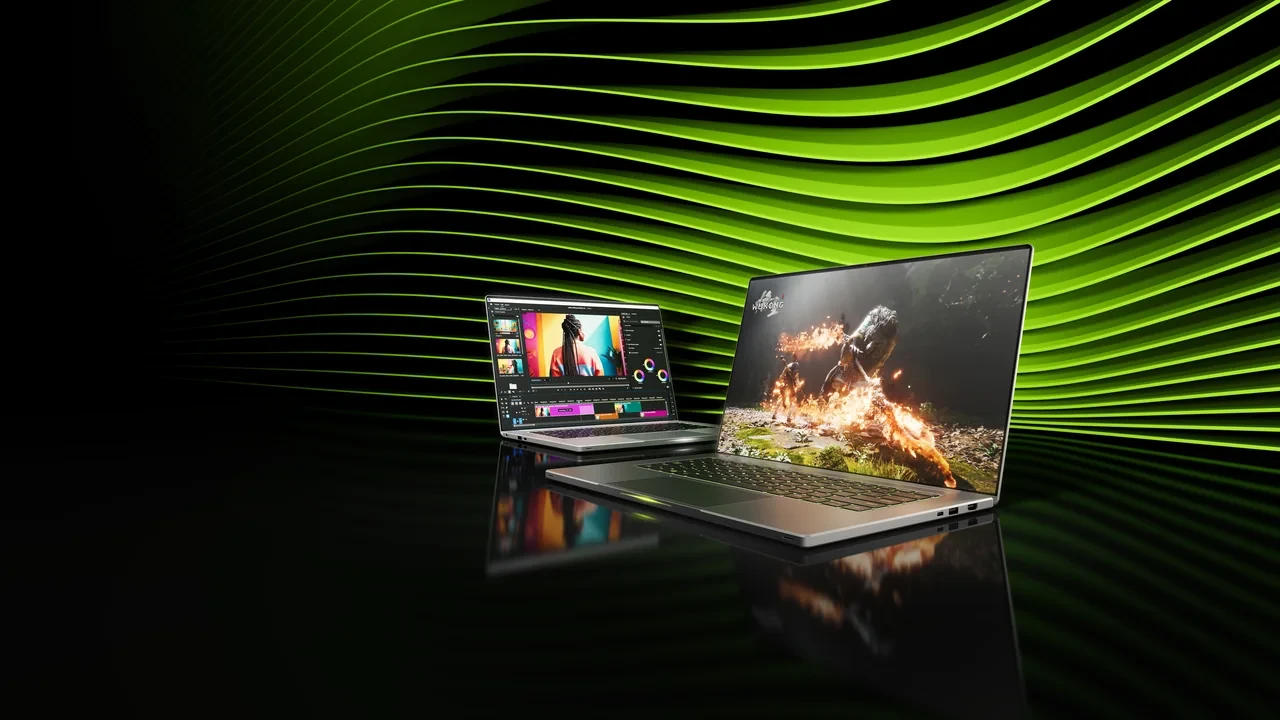
GeForce RTX 5050 Laptop GPU DLSS 5 best settings for developers and players
DLSS 5 is scheduled to launch for the GeForce RTX 50 Series on September 3, 2026 at 21:00 PT. Until public drivers and the DLSS 5 SDK make per-title results reproducible, figures for this exact laptop GPU remain launch-gated. The settings decision must therefore start with the controls and limits that can already be measured.
A 5050 laptop shares its power and thermal budget with a mobile CPU and usually drives a 1080p or 1600p panel rather than a high-refresh 4K display. Chassis cooling, GPU power limits, and panel refresh all affect which DLSS modes and Frame Generation settings make sense.
Why laptop design changes the DLSS 5 setup
The GeForce RTX 5050 Laptop GPU is a mobile Blackwell part in NVIDIA’s GeForce RTX 50 Series. Thin-and-light systems run it at far lower total board power than a desktop GeForce RTX 5050. Configurable TGP (Total Graphics Power), Dynamic Boost, OEM cooling, chassis thermal headroom, and AC-adapter wattage all change sustained performance. A setting that works on one laptop SKU may fail on another with the same GPU name.
The profile must therefore be chosen for the laptop, game, and resolution. The Wikipedia overview of the RTX 50 Series provides background on the generation, Blackwell’s DLSS stack, and the driver timeline supporting DLSS 5.
For indie studios, technical artists, and porting teams, a 5050-class laptop is also a plausible minimum target for current portable PC gaming. A build with stable frame times at 1080p and a reasonable DLSS 5 mode should require less effort on stronger hardware.
What is known before launch
No public, verifiable per-title DLSS 5 results are available for the GeForce RTX 5050 Laptop GPU before September 3, 2026 at 21:00 PT. That limit has three consequences:
- Any pre-launch guide that prints “X percent faster at 4K Quality” for this exact GPU is guessing. Treat such numbers as marketing, not as evidence.
- The DLSS 5 SDK and the matched NVIDIA Studio or Game Ready driver for the GeForce RTX 5050 Laptop GPU are the source of truth for which modes, which inputs, and which frame-generation behaviors are exposed on this hardware.
- The settings framework below is built around the modes that DLSS has historically exposed, so the day the DLSS 5 release notes are public, the task is to map the new mode names to the existing decision tree, not to relearn the tree itself.
After launch, check compatibility, mode names, and supported features on the official NVIDIA DLSS 5 launch and compatibility page before locking a production preset.
Hardware limits that determine the preset
No driver setting can remove the laptop’s power or thermal limit. If a preset causes throttling, Frame Generation only turns an uneven base frame into an uneven presented frame.
Power and thermal envelope
The laptop OEM sets a configurable TGP range, and the maximum for this lower-end RTX 50 mobile part depends on the chassis. The same GPU model can therefore span a wider performance range than a desktop card. Sustained boost also depends on cooling. If a laptop stays cool for only the first two minutes, a one-minute capture overstates its long-run performance.
Display pipeline
Most RTX 5050 laptops use 1080p or 1600p panels at 120 Hz, 144 Hz, or 165 Hz. Some offer faster 1080p screens, a few use 1600p at 120 Hz, and very few pair this tier with 4K. The display sets the visible ceiling while DLSS 5 separates internal rendering from presentation. A Frame Generation path starting from 60 Hz behaves differently on a 144 Hz screen than on a 240 Hz panel.
Memory and bus
Mobile 5050-class GPUs typically have a narrower memory bus and less VRAM than desktop equivalents. Frame Generation needs intermediate frame history, and Ray Reconstruction adds buffers. Leave room for the game, engine, DLSS data, and operating system rather than filling VRAM to the reported game working set.
CPU pairing and frame pacing
A current-generation mobile CPU can still hit its own sustained power limit. Low GPU utilization, uneven frame times, and no scaling when the graphics preset changes all suggest a CPU bottleneck. Frame Generation cannot fix that limit and may make the stutter easier to see. Resolve it before selecting an aggressive DLSS 5 mode.
DLSS 5 controls on a laptop
These controls interact, so evaluate them as a per-title configuration rather than independent toggles.
| Lever | What it changes | Cost on a 5050 laptop | Benefit on a 5050 laptop |
|---|---|---|---|
| Render resolution | Internal target before upscaling | Highest cost: linear in pixel count | Biggest single source of headroom for frame time |
| DLSS 5 mode (Quality, Balanced, Performance, Ultra Performance) | Upscaler target vs. internal target ratio | Small, mostly upscaler cost | Lets the GPU spend frame time on shading, not on raw pixels |
| Frame Generation | Inserts an AI-generated frame between rendered frames | Adds latency, uses extra VRAM and a small GPU tax | Doubles the presented frame count without doubling the rendered frame cost |
| DLSS Ray Reconstruction | Replaces hand-tuned denoisers with a neural denoiser | Small GPU cost, some VRAM cost | Improves image stability in ray-traced scenes at lower sample counts |
| NVIDIA Reflex (Low Latency / On / On + Boost) | Reduces render queue depth | Negligible GPU cost; small CPU cost | Lowers click-to-photon latency, especially with Frame Generation on |
| Frame cap | Limits the presented frame rate to a target | Frees GPU and CPU budget | Stabilizes frame pacing, reduces power and heat |
| Render scaling below 100% | Internal sub-100% render scale | Linear in pixel count, similar to lowering render resolution | Cheaper than DLSS for some legacy engines, with worse image quality |
Render resolution versus DLSS 5 mode
Internal resolution is the most expensive setting and should move first. Dropping from a 1600p target to 1080p gives roughly a 2x reduction in shaded pixels, a larger saving than any single game preset toggle. Choose whether to lower resolution directly, use DLSS Quality, or select a more aggressive mode after checking image quality, anti-aliasing stability, and post-processing.
Frame Generation on a laptop
Frame Generation inserts an AI-generated frame between two rendered frames. Presented FPS roughly doubles, but latency to the newest rendered frame does not, so input lag rises without compensation. It works best when the base frame rate is already close to the display target. Below 45 FPS, generated frames are far enough apart to make motion look discontinuous or smeared.
DLSS Ray Reconstruction on a 5050 laptop
Ray Reconstruction can make ray tracing practical on this tier by producing a clean image from fewer rays per pixel. That may leave room for reflections, global illumination, or shadows that would otherwise cost too much. Its neural denoiser still consumes GPU time and competes with the rest of the frame.
Reflex as a default
Leave NVIDIA Reflex on in most games. It reduces render-queue depth, lowers latency, and tightens pacing at negligible GPU cost. “On + Boost” adds a small CPU cost and should be tested only when the processor has headroom.
Choose settings from a repeatable test
The game’s render cost, laptop cooling, panel refresh, and acceptable latency determine the result. Developers and players can use the same eight-step test.
Step 1: Establish a stable baseline without DLSS 5
Disable DLSS 5, Frame Generation, and Ray Reconstruction. Set the game to Medium, cap the frame rate a few FPS below panel refresh, and capture 60 seconds in a representative scene. Look for stable pacing rather than the highest average. Spikes at Medium suggest a bottleneck elsewhere in the system that DLSS cannot fix.
Step 2: Identify the bottleneck
Check GPU load, CPU load, and VRAM use. Near 99 percent GPU utilization indicates a GPU limit, where DLSS 5 can help most. A 60 to 80 percent GPU load with one or more saturated CPU cores indicates a CPU limit. More aggressive DLSS modes may make that case worse by shifting work toward an overloaded processor.
Step 3: Pick a render target the laptop can hold
Use the panel’s native resolution if the baseline held its target; otherwise drop one step. DLSS 5 operates on top of this choice, and an oversized target leaves no room for the upscaler or denoiser.
Step 4: Choose a DLSS 5 mode based on the gap
Compare the baseline at the chosen render target with the frame rate needed for the panel. Let that gap select the mode:
- If the baseline is within roughly 15 percent of the target frame rate, DLSS 5 Quality is the right default. Image quality stays close to native, and the saved frame time is enough to stabilize the worst frames.
- If the baseline is 20 to 35 percent below the target, DLSS 5 Balanced is the sensible middle ground. The image is still coherent on a 1080p or 1600p panel, and the frame-time gain is large enough to matter.
- If the baseline is 40 percent or more below the target, DLSS 5 Performance is the right mode. On a laptop, going past Performance into Ultra Performance is rarely worth the visible loss in image stability for this tier.
Step 5: Decide on Frame Generation
Frame Generation is separate from the DLSS mode. Enable it only when the rendered base is at least 45 FPS and the panel refresh is high enough for inserted frames to look continuous. It rarely helps on a 60 Hz panel, which cannot show more than 60 FPS. Under the right conditions, it can separate smooth and uneven presentation on a 120 Hz or 144 Hz display.
Step 6: Enable Ray Reconstruction only if the game is ray-traced
Leave Ray Reconstruction off when the game has no ray-traced effects. For ray-traced reflections, shadows, or global illumination, enable it and measure again; the feature can offset its cost by allowing lower ray sample counts.
Step 7: Lock in Reflex and a frame cap
Set Reflex to On, or On + Boost if the CPU has spare capacity. Cap FPS a few frames below the panel refresh to avoid rendering frames the screen won’t show, reducing heat and improving pacing.
Step 8: Validate with a long capture, not a short one
Repeat the 60-second capture with the new settings, then run at least 5 minutes in a worst-case scene with heavy effects, crowds, and weather. The longer pass reveals throttling that a short laptop benchmark can hide.
Starting profiles for common laptop displays
Refine these starting points with the test above, then map them to the confirmed DLSS 5 mode names after launch.
Profile A: Competitive multiplayer on a 144 Hz or 165 Hz panel
Prioritize low latency and stable high refresh over maximum image fidelity. A 5050 laptop can usually reach this profile in games that aren’t unusually demanding.
- Render resolution: panel native, with the in-game preset at Low or Medium.
- DLSS 5 mode: Quality, so the upscaler is doing a small amount of work and image quality is close to native.
- Frame Generation: off, because latency matters more than a doubled presented frame rate in this profile.
- Ray Reconstruction: off, because ray-traced effects are usually disabled in competitive play.
- Reflex: On + Boost.
- Frame cap: a few FPS below the panel’s refresh rate, to give the GPU a small breathing room.
Profile B: Single-player story game on a 1080p or 1600p high-refresh panel
Balance image quality with smooth motion. The laptop may need a lower render resolution for stable pacing, but it can usually retain modest ray-traced effects.
- Render resolution: panel native, or one step below if the in-game preset is High or Ultra.
- DLSS 5 mode: Balanced as a default, with Quality as the alternative for less demanding scenes.
- Frame Generation: on, with a frame cap that targets the panel’s refresh rate minus a small margin.
- Ray Reconstruction: on, if the game ships with ray-traced effects enabled at this preset.
- Reflex: On.
- Frame cap: panel refresh rate minus a small margin, to keep Frame Generation within the panel’s presentation window.
Profile C: Cinematic single-player on a 1080p 60 Hz panel
Prioritize image quality. A heavy cinematic game may not hold 60 FPS at native 1080p Ultra on this laptop tier.
- Render resolution: 1080p native, with the in-game preset dropped to Medium to keep the GPU’s budget available for ray tracing and post-process.
- DLSS 5 mode: Quality, to keep the image coherent.
- Frame Generation: off, because the panel cannot present more than 60 FPS, and the latency cost outweighs the visual benefit at this refresh rate.
- Ray Reconstruction: on, with a small reduction in ray sample count so the denoiser has enough budget.
- Reflex: On.
- Frame cap: 60 FPS, locked, to stabilize frame pacing.
How the RTX 5050 laptop compares with nearby tiers
This relative positioning helps with laptop and desktop-replacement comparisons. It does not include per-game figures because those remain launch-gated.
| Target | Typical role | Render target sweet spot | DLSS 5 posture |
|---|---|---|---|
| GeForce RTX 5050 Laptop GPU | Thin-and-light 1080p to 1600p gaming, indie dev validation | 1080p native or 1600p with a moderate preset | DLSS 5 Quality as default, Performance in heavy scenes, Frame Generation situational |
| Higher-tier RTX 50 laptop GPU | 1600p to 4K gaming, heavier single-player | 1600p native or 4K with DLSS 5 Quality | DLSS 5 Quality as default, Performance rarely needed, Frame Generation more often viable |
| Previous-gen mid-range mobile | Legacy 1080p gaming | 1080p with Low to Medium | DLSS 5 support depends on the part’s position in the RTX 50 Series compatibility list, not assumed |
| Desktop replacement class | High-refresh 1600p to 4K | 1600p or 4K with a heavier preset | DLSS 5 Quality default, Performance and Ultra Performance available, Frame Generation broadly useful |
These recommendations stop at Performance mode. On this tier’s smaller render targets, Ultra Performance loses enough image stability that its frame-time saving is rarely worth the visible artifacts in motion.
Use the RTX 5050 laptop as a validation target
This GPU represents a plausible portion of the laptops likely to run a modern PC game. Testing it during production, rather than postponing it as a minimum-spec check, affects render scaling, thermal profiling, and the player-facing preset.
Render scaling in the engine
An engine with dynamic resolution can use the RTX 5050 laptop as the lower bound. If its internal target can fall to 1080p or below without breaking the image on a 1600p panel, the correct DLSS 5 setup depends on the scaling policy rather than one fixed preset.
Thermal and power-aware profiling
Profile on the laptop itself. A 5-minute worst-case capture reveals throttling that a 30-second run hides. Performance can fall 25 percent by minute three even when the short pass looks good, and players experience the sustained result rather than the peak.
DLSS 5 integration on this tier
The official NVIDIA DLSS 5 launch and compatibility page will identify supported engines, plug-ins, and SDKs after release on September 3, 2026 at 21:00 PT. Until then, treat the integration contract as draft and don’t hard-code preview mode names into shipping builds. The studio’s GeForce RTX 2060 SUPER DLSS 5 compatibility guide covers similar decisions for an older GPU.
Player-side handoff
The launcher’s “Recommended” setting should distinguish a 1080p 144 Hz panel from a 1080p 60 Hz panel instead of applying one global preset. Hardware detection can usually make that distinction at little cost. The studio’s Game Design Agency overview discusses the related production and QA handoff.
Common DLSS 5 failure modes
Most poor configurations show one of these symptoms:
Stutter with Frame Generation on
Frame Generation makes uneven base frames easier to see. Lower the game preset, use a more aggressive DLSS 5 mode, and add a frame cap before disabling it. The generated frames are often exposing an underlying pacing problem.
Ghosting or smearing on fast camera motion
Aggressive modes at small internal resolutions can smear during fast camera turns. Move up one preset, such as Performance to Balanced, and enable Ray Reconstruction in a ray-traced game so the denoiser can reduce residual reconstruction error.
High input lag with Frame Generation on
Frame Generation adds latency. If response feels slow, turn it off, lower the game preset, and raise the base frame rate instead. That is often the better 1080p choice for competitive games.
CPU-bound stutter that DLSS 5 cannot fix
Low GPU utilization with one or more CPU cores at 100 percent indicates an upstream limit. Lower graphics settings and aggressive DLSS modes won’t fix it, while Frame Generation may expose the stutter. The engine needs work; during play, cap the frame rate.
VRAM pressure
Near the VRAM limit, mid-frame allocation and eviction can cause periodic stutter. Reduce the texture pool and game preset, then disable Ray Reconstruction if needed. Frame Generation also carries a small but non-zero memory cost and can be turned off.
Launch-day validation checklist
After DLSS 5 becomes available on September 3, 2026 at 21:00 PT, developers and players can use the same checklist to establish a stable profile.
- Install the matched NVIDIA driver or Studio driver for the GeForce RTX 5050 Laptop GPU on the day of the DLSS 5 launch, and verify the DLSS 5 mode names in the NVIDIA control panel or the in-game overlay.
- Capture a 60-second baseline of the game with DLSS 5 fully disabled, at the panel’s native resolution, with the in-game preset set to Medium and a frame cap a few FPS below the panel’s refresh rate.
- Confirm the bottleneck from GPU and CPU utilization. If the GPU is the bottleneck, proceed. If the CPU is the bottleneck, lower the CPU-bound settings first (crowd density, view distance, physics step rate) and re-capture.
- Pick a DLSS 5 mode from the decision method, based on the gap between the baseline frame rate and the target frame rate.
- Decide on Frame Generation based on the rendered base frame rate, the panel’s refresh rate, and the player’s latency tolerance.
- Enable DLSS Ray Reconstruction only if the game has ray-traced effects, and re-capture.
- Lock in NVIDIA Reflex and a frame cap a few FPS below the panel’s refresh rate.
- Run a 5-minute capture in a worst-case scene and confirm sustained thermals, sustained frame rate, and stable frame pacing. If any of those drift, step one preset down and re-test.
Post-launch measurements change the inputs, not the test method.
Frequently asked questions
Is DLSS 5 officially supported on the GeForce RTX 5050 Laptop GPU?
DLSS 5 is scheduled to launch as part of the GeForce RTX 50 Series on September 3, 2026 at 21:00 PT, and the GeForce RTX 5050 Laptop GPU is an RTX 50 Series product. Treat the exact supported mode list, the supported Frame Generation configurations, and the per-title behavior as launch-data gated until the public drivers and the DLSS 5 SDK are out. The official NVIDIA DLSS 5 launch and compatibility page is the source of record for what is supported on this exact GPU.
What DLSS 5 mode should I use on a 1080p panel?
For most 1080p panels, DLSS 5 Quality is the right default on a GeForce RTX 5050 Laptop GPU. It keeps the image close to native, and the saved frame time is enough to stabilize the worst frames in most games. Switch to Balanced if the in-game preset is High or Ultra, and to Performance only if the scene is unusually heavy or the chassis is thermally limited.
Should I enable Frame Generation on a 60 Hz display?
Usually no. A 60 Hz panel cannot present more than 60 frames per second, so Frame Generation has no headroom to use. The latency cost is the dominant effect, and on a GeForce RTX 5050 Laptop GPU that headroom is better spent on a more stable rendered frame rate. On a 120 Hz or 144 Hz panel, Frame Generation is a more defensible default.
Does enabling DLSS Ray Reconstruction always help?
Only if the game is actually rendering ray-traced effects. Ray Reconstruction replaces hand-tuned denoisers with a neural denoiser; if the game is not ray-traced, there is nothing for the denoiser to do, and enabling it costs frame time and VRAM for no visual benefit. On a GeForce RTX 5050 Laptop GPU, that cost is real, so enable Ray Reconstruction selectively.
How much VRAM do I need to leave free for DLSS 5?
There is no single number, because each game’s VRAM footprint differs, and the DLSS 5 buffers vary by mode and by Frame Generation state. A practical rule is to leave at least 10 to 15 percent of the GPU’s VRAM free after the game has loaded, before turning on Frame Generation and Ray Reconstruction. If the GeForce RTX 5050 Laptop GPU is approaching its ceiling, drop texture quality first, then disable Ray Reconstruction, then disable Frame Generation.
Can DLSS 5 fix a CPU-bound stutter?
No. Upscaling and frame generation operate on the GPU’s output; they cannot remove a CPU bottleneck. If GPU utilization is below 90 percent while one or more CPU cores are at 100 percent, the right action is to lower CPU-bound settings (crowd density, simulation rate, draw distance) before changing DLSS 5 modes. Frame Generation will make a CPU-bound stutter more visible, not less.
What is the difference between DLSS 5 Quality, Balanced, and Performance on a laptop?
On a GeForce RTX 5050 Laptop GPU, the practical difference is the internal-to-display resolution ratio. Quality produces the cleanest image at the cost of the smallest frame-time gain; Balanced is the middle ground; Performance trades more image stability for a larger frame-time gain. The decision between them is driven by the gap between the rendered frame rate and the target frame rate, not by a one-size-fits-all recommendation.
Is the GeForce RTX 5050 Laptop GPU a reasonable validation target for shipping a PC game?
Yes, with the usual caveats. It represents a large share of the laptops that will run a modern PC game, and a build that holds a stable frame rate on a GeForce RTX 5050 Laptop GPU with a reasonable DLSS 5 profile will usually run better on stronger hardware. The caveat is that laptops hide thermal problems inside short benchmarks, so validate with sustained captures, not with peak numbers.
Where can I find official DLSS 5 documentation for the GeForce RTX 5050 Laptop GPU?
The official NVIDIA DLSS 5 launch and compatibility page is the primary source. The Wikipedia overview of the RTX 50 Series adds generation and driver-timeline context.
Related reading
- Game Design Agency: Build Next-Gen Gaming Experiences
- GeForce RTX 2060 SUPER DLSS 5 compatibility for GameDev





Leave a Reply